
To export the official farm logbook as a PDF you need two things: complete holding details (holder, registration code, autonomous community) and the period’s operations recorded as carried out. With that, you choose the dates and crops, and the software generates the document in the official format, ready to print or save. In Orcelis you do it from the holding’s «Cuaderno» (logbook) tab with the «Imprimir cuaderno» (print logbook) button.
Orcelis’s screens are in Spanish; button and menu names are shown as they appear in the app.
What the official farm logbook is
It is the document that records, for a given period, the plant protection treatments, fertilisation, irrigation, field operations and harvests of a farm holding. It is what you are asked for in an inspection or a certification audit. In Spain its minimum content is set by the SIEX rules (Spain’s national information system for farm holdings), which we explain in what the digital farm logbook is and who must keep one.
A PDF is only as good as the data it comes from. If treatments are recorded late or planned irrigations appear as done, the logbook will be wrong even if the format is perfect. That is why it pays to prepare the data before generating it.
Before you start: what needs to be up to date
- The holding’s official details. They form the logbook’s header.
- Each crop’s schedule. In Orcelis, the logbook is fed by the schedule (agenda): whatever you save from fertigation and the plant protection prescription appears there automatically.
- What was actually applied. Orcelis leaves out tasks marked No aplicado (not applied) and irrigations, fertiliser applications and treatments via irrigation for days still to come.
Step by step
- Complete the holding’s official details. Open the holding, click Acciones / Operaciones › Editar explotación (Actions / Operations › Edit holding) and fill in the Cuaderno de explotación (SIEX) block: Código SIEX (SIEX code, formerly REGEPA), REA (Spanish farm register number), Comunidad Autónoma (autonomous community) and Régimen de producción (production system).
- Review each crop’s schedule. In the crop’s Cuaderno tab, check that what was done is marked as Hecho (done) and add anything missing by hand with «+ Registrar» (Record).
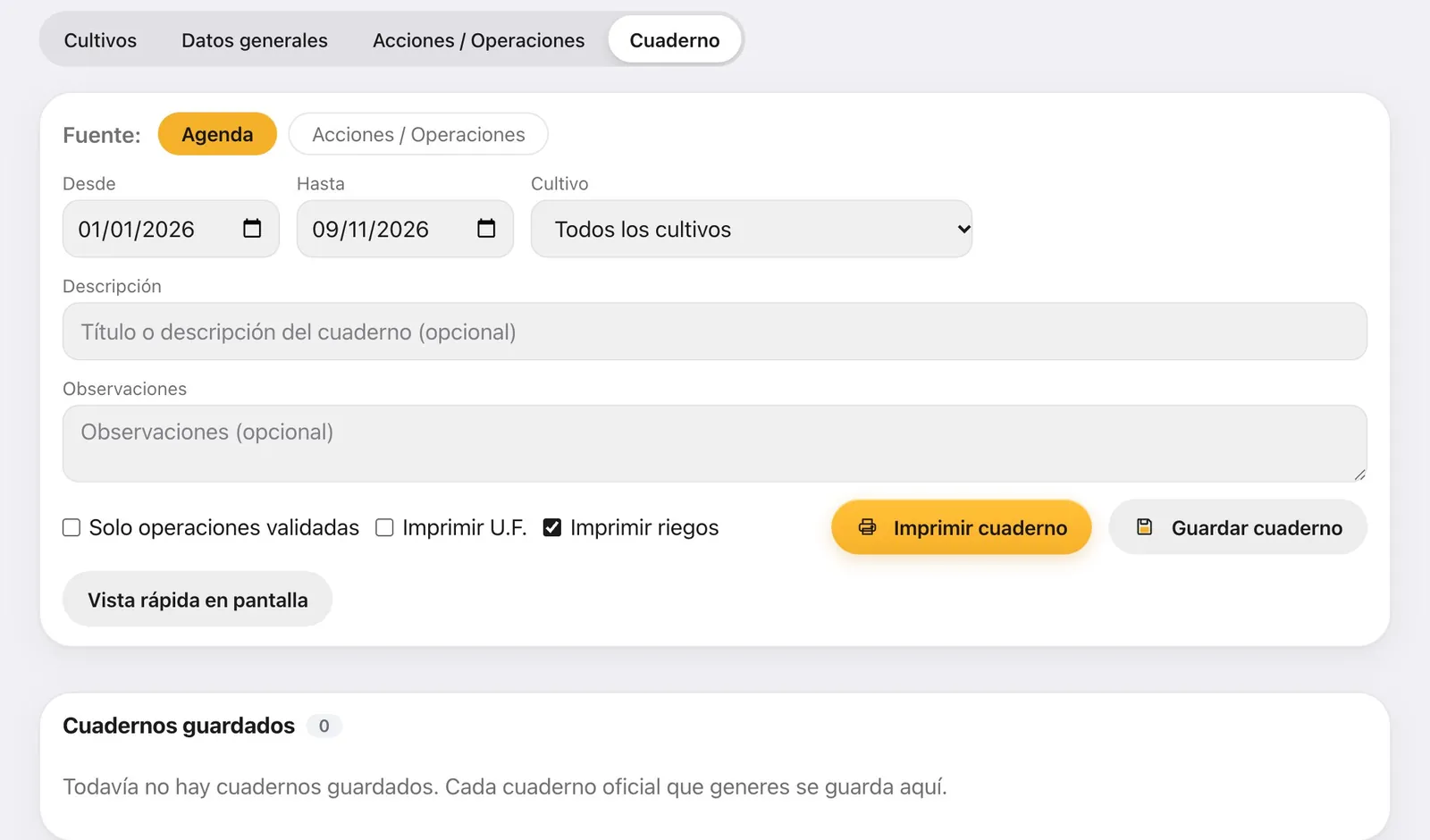
- Open the holding’s Cuaderno tab. It is the Cuaderno tab of the holding record, not the crop’s.
- Choose the period and the crops. Enter Desde and Hasta (from and to), and under Cultivo (crop) choose a specific one or Todos los cultivos (all crops).
- Type the description and tick the options. The Descripción will be the title. If you need them, tick Solo operaciones validadas (validated operations only), Imprimir U.F. (print fertiliser units) and Imprimir riegos (print irrigations).
- Generate the PDF. Click «Imprimir cuaderno». The PDF opens in another tab, ready to print or save.
- Save it if you want to keep it. Click «Guardar cuaderno» (save logbook) and it will be stored under Cuadernos guardados (saved logbooks), where you can open it again with «Ver / Imprimir» (view / print).
What each option does
| Option | What it is for |
|---|---|
| Solo operaciones validadas | Prints only what has been validated. Useful for handing over a reviewed logbook. |
| Imprimir U.F. | Adds the fertiliser units (N, P, K…) applied. |
| Imprimir riegos | Adds the section on water applied. Irrigations are grouped by month, with number of irrigations, time and m³. |
| Todos los cultivos | A single logbook for the whole holding instead of one per crop. |
If you just want a quick look without generating the PDF, use «Vista rápida en pantalla» (quick on-screen view). Its Fuente (font) selector only changes that view; the official PDF logbook always comes out in the full format.
Why it is easier with Orcelis
In Orcelis you don’t type up the logbook: it builds itself from what you already do. The fertigation calculation and the plant protection prescription go into the schedule, and the grower confirms on their phone what they applied. When the inspection comes, the logbook is already done. The official PDF logbook is included in all Orcelis plans, including the free one, and with a paid subscription you can put your logo in the header from Configuración › Informes (Settings › Reports).
Orcelis generates the official PDF; direct submission of the data to SIEX is not available yet.
Frequently asked questions
A treatment or an irrigation is missing from the PDF. Why?
Check in the crop’s schedule whether it is marked as No aplicado or whether its date is in the future. If you ticked Solo operaciones validadas, also check that it has been validated.
I calculated fertigation and it doesn’t appear in the logbook. What should I do?
When you saved the calculation you chose «No tocar la agenda» (don’t change the schedule). In the crop record, Acciones / Operaciones tab, tick the prescription and click «Pasar a la agenda» (send to schedule), or save the calculation again choosing «Reemplazar» (replace).
The browser won’t open the PDF
The logbook opens in a new tab. Allow pop-ups for Orcelis in your browser and click «Imprimir cuaderno» again.